
Auto-provision phones with UCM Zero Config
Let the UCM set up Grandstream and other phones for you.
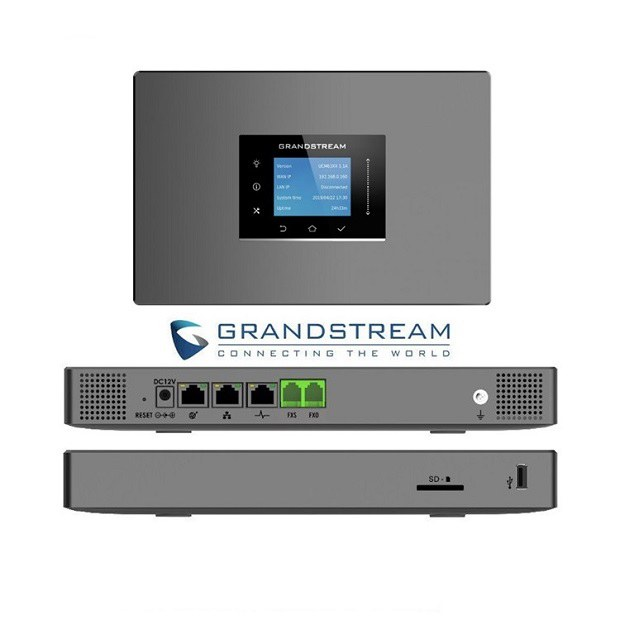
| What you need | Affects |
|---|---|
| Admin access to the UCM web portal, and Grandstream phones on the same network | The phones you provision |
1. Turn it on
Open the Zero Config settings (under value-added features) and make sure it's enabled.
2. Provision phones
- Connect phonesPlug the phones into the same network.
- Find themScan for devices, or add a phone by MAC address.
- Assign extensionsAssign an extension to each phone.
- PushPush the configuration. The phones restart and register.
Troubleshooting
| Problem | Likely cause and fix |
|---|---|
| Phones not found | They're on a different network or VLAN. Add them by MAC instead. |