
Add a user and desk phone
Create a user and assign a supported desk phone so it sets itself up.
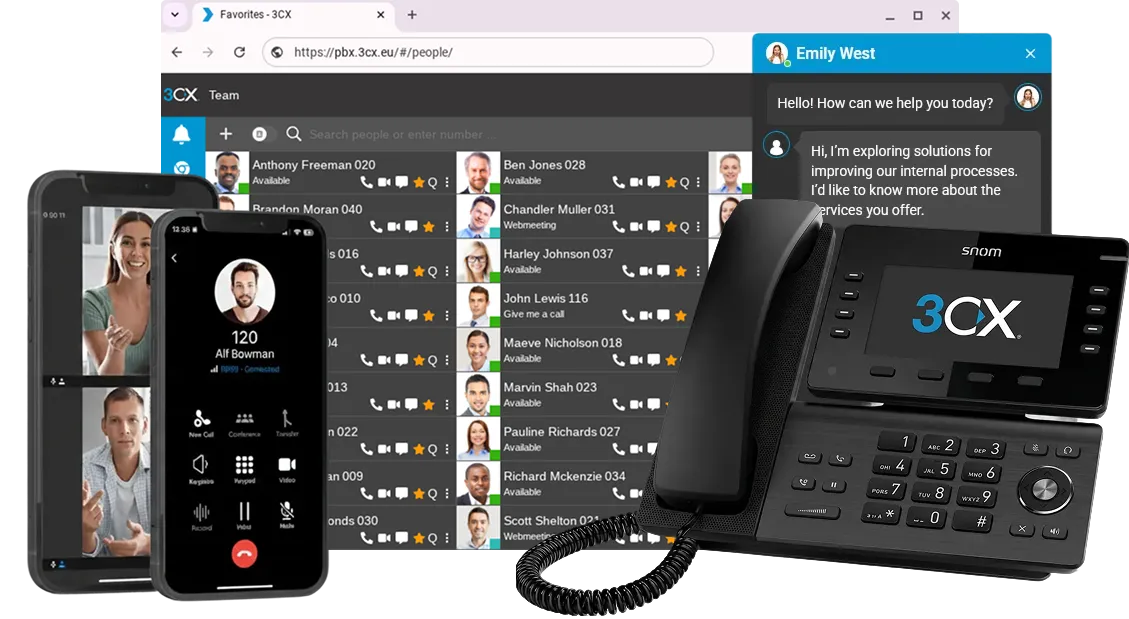
| What you need | Affects |
|---|---|
| Admin access to the 3CX Admin Console, the person's name and email, and the phone's MAC address (on the label under the phone) | The new user and their desk phone |
1. Create the user
- Open UsersIn the Admin Console, open Users and click Add.
- Enter their detailsEnter the first name, last name and email address. 3CX suggests the next free extension number; keep it or choose your own.
- Set their roleLeave the role as User unless they need to manage the system.
- SaveClick Save. 3CX emails them a welcome email with their app login and Web Client link.
2. Add their desk phone
- Add a phoneOpen the user, go to their phone settings and click Add, or use Phones to add a new phone.
- Choose the modelSelect the brand and model, and enter the MAC address from the label under the phone.
- Plug it inConnect the phone to the same network as 3CX. It finds 3CX and sets itself up within a few minutes.
3. Phones at another site
For a phone that is not on the office network, copy the provisioning link from 3CX and enter it in the phone's auto-provisioning settings, then restart the phone.
Troubleshooting
| Problem | Likely cause and fix |
|---|---|
| The phone never shows up | Check the MAC address is typed correctly, then factory reset the phone so it looks for 3CX again. |
| The user didn't get the welcome email | Check the email address, look in their junk folder, or resend it from the user's page. |
| The phone shows the wrong name | Change the display name on the user, then reprovision the phone. |